
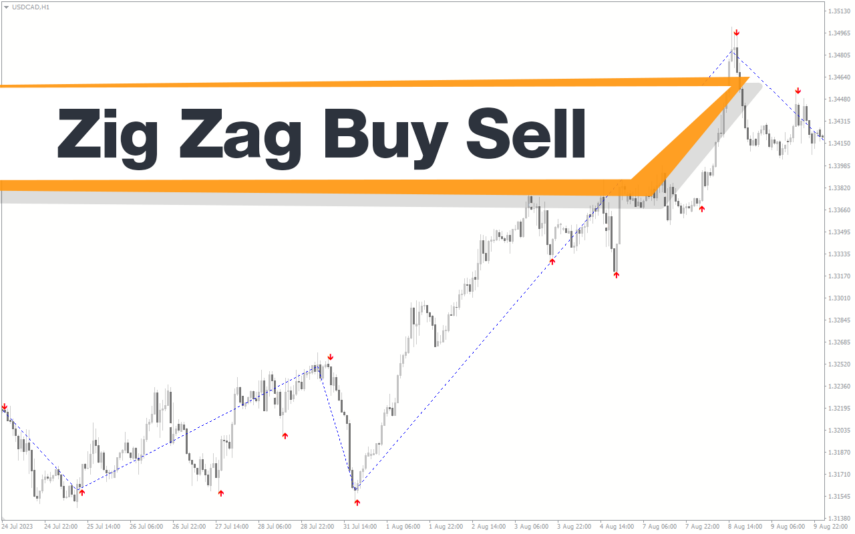
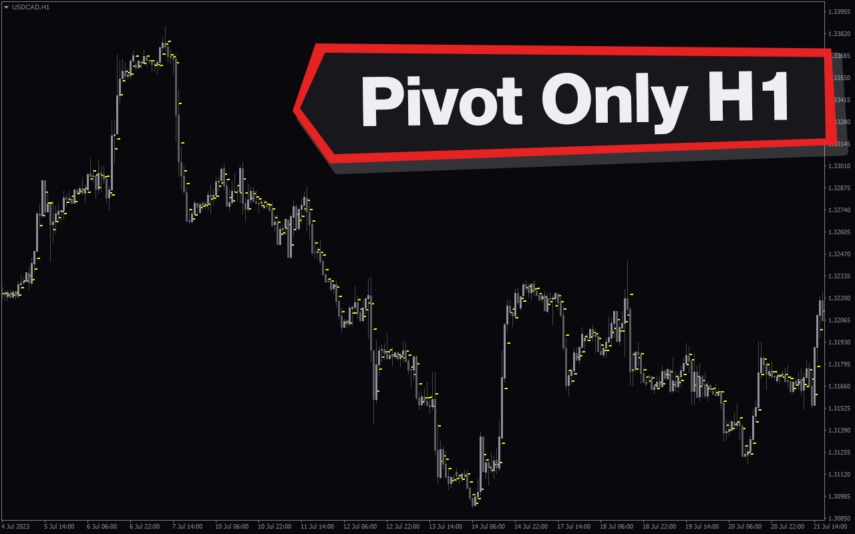
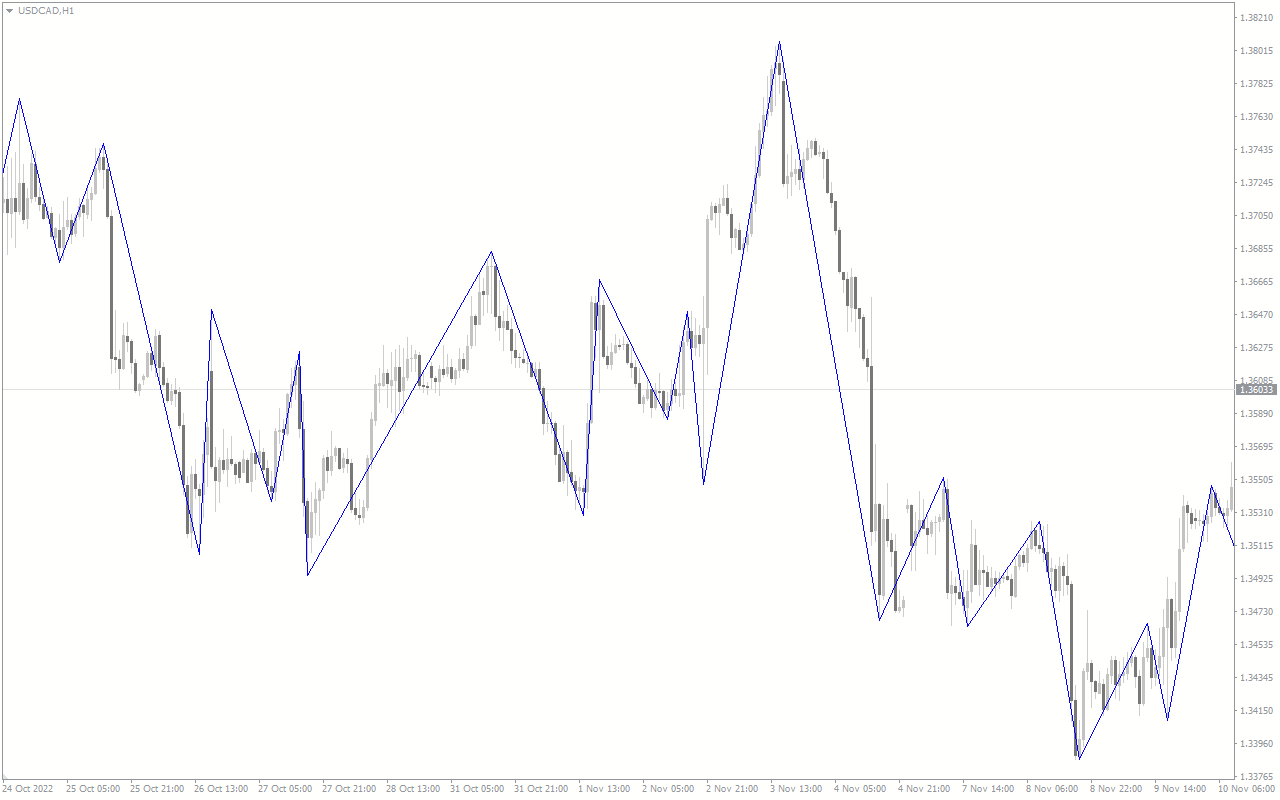
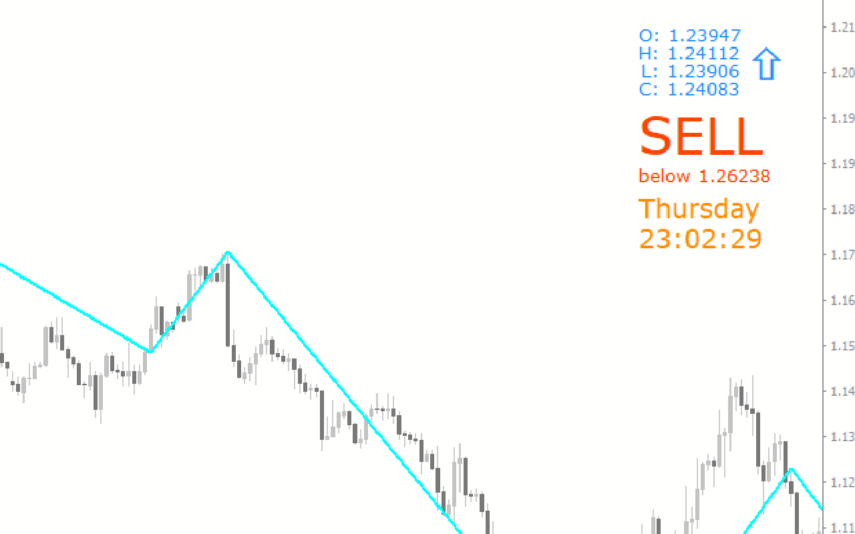
The Zig Zag 2 indicator is a popular and free Forex indicator for the MT4 trading platform. It is a useful tool that can help traders identify trends and price reversals in the Forex market. The indicator uses a combination of swing highs and lows to draw the Zig Zag line. The Zig Zag 2 indicator is designed to filter out smaller price movements and focus on the larger ones. It can be used to identify potential support and resistance levels, as well as to identify potential entry and exit points. The Zig Zag 2 indicator works by plotting a line connecting the swing highs and lows of the price action. The indicator is configured to ignore smaller price movements and only plot the larger ones. This allows traders to focus on the more important price movements and helps them identify potential support and resistance levels. The indicator also helps traders identify potential entry and exit points. It can also help traders identify potential entry and exit points. The indicator is free to use and is available for the MT4 trading platform.

MT4
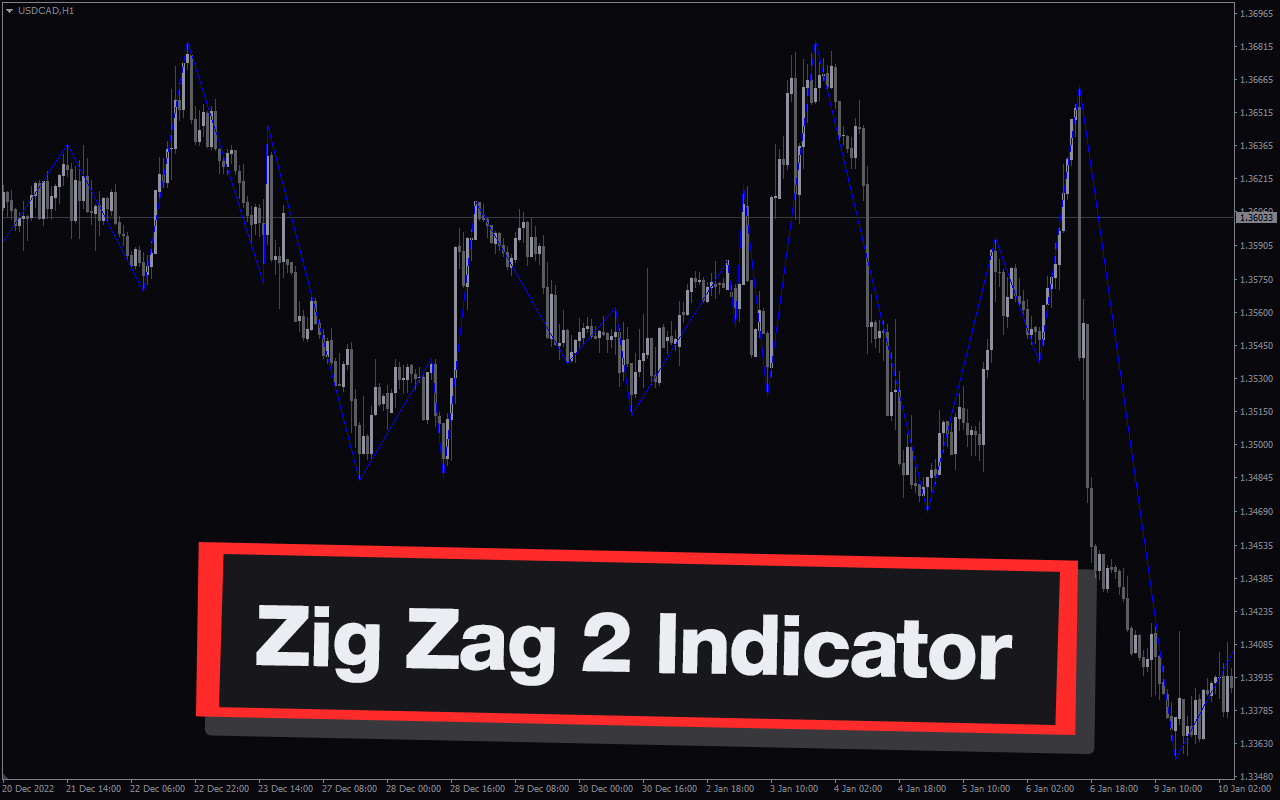

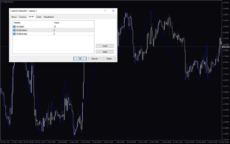
Zig Zag 2 Indicator
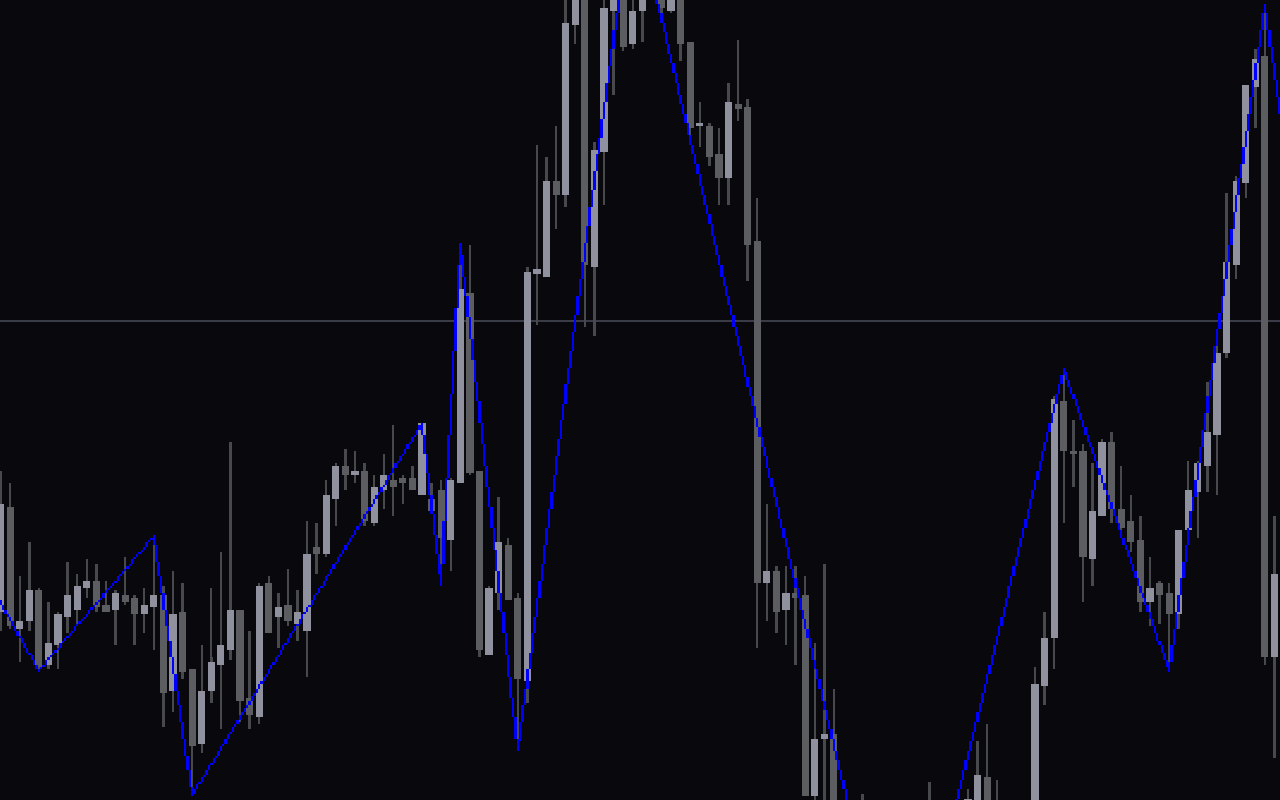
The Zig Zag 2 Forex Indicator is a popular and useful MT4 tool for Forex traders. It works by connecting two or more extreme points on the chart, then drawing a line between them. With the Zig Zag 2 Forex Indicator, traders can easily identify potential trend reversals and make better trading decisions.
| Indicator Type | |
|---|---|
| Timeframe | |
| Trading Style | |
| Platform |
0
People watching this product now!
Downloads - 14
Description
Reviews (0)
How to Install
Related products
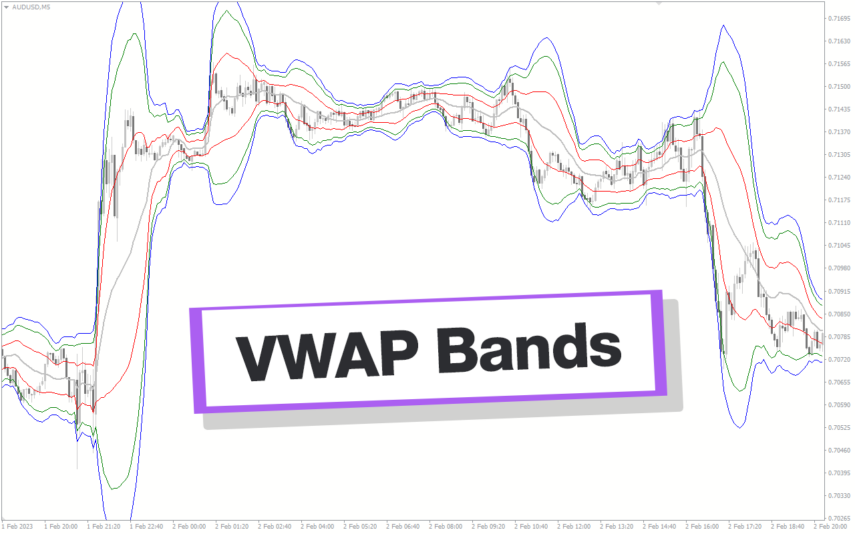
VWAP Bands
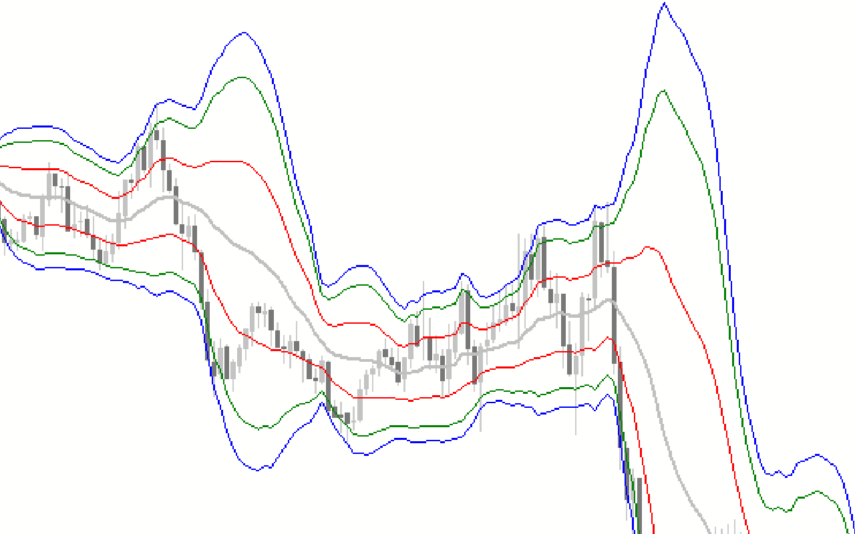
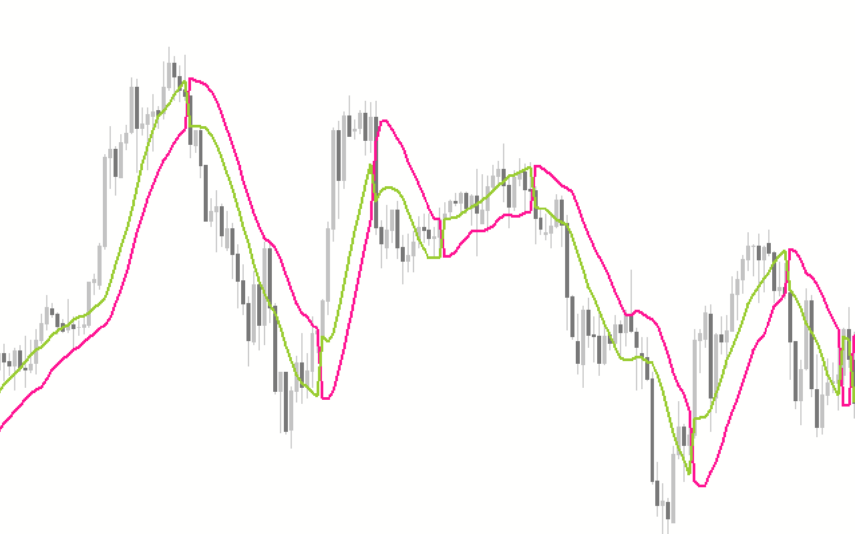
Discover the power of the VWAP Bands indicator, which emphasizes volume in its calculation. Gain insights into support and resistance levels, fair value, and trading opportunities. Suitable for all traders, this versatile Metatrader Indicator allows customization across various time frames with adjustable settings for better trading.
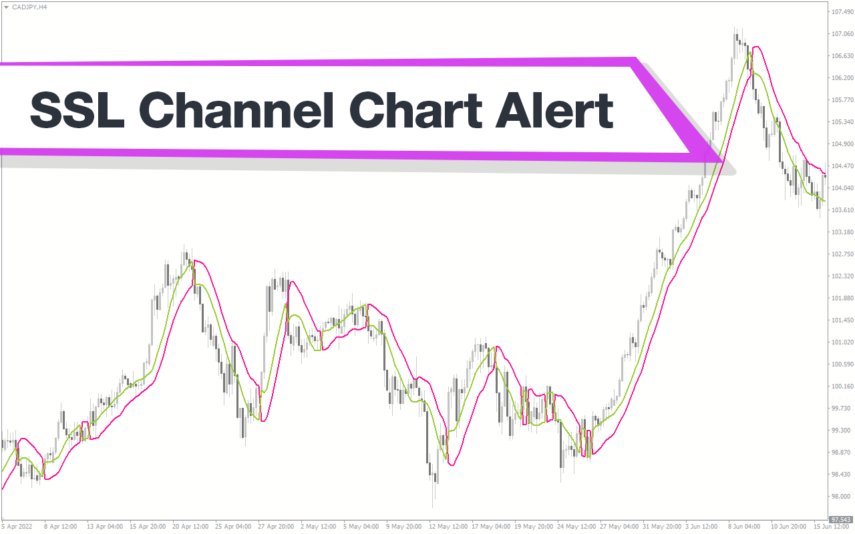
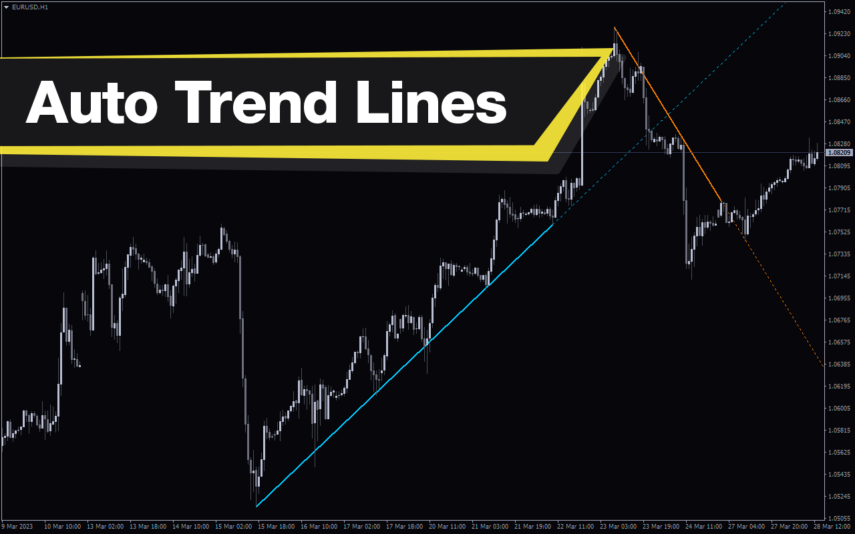
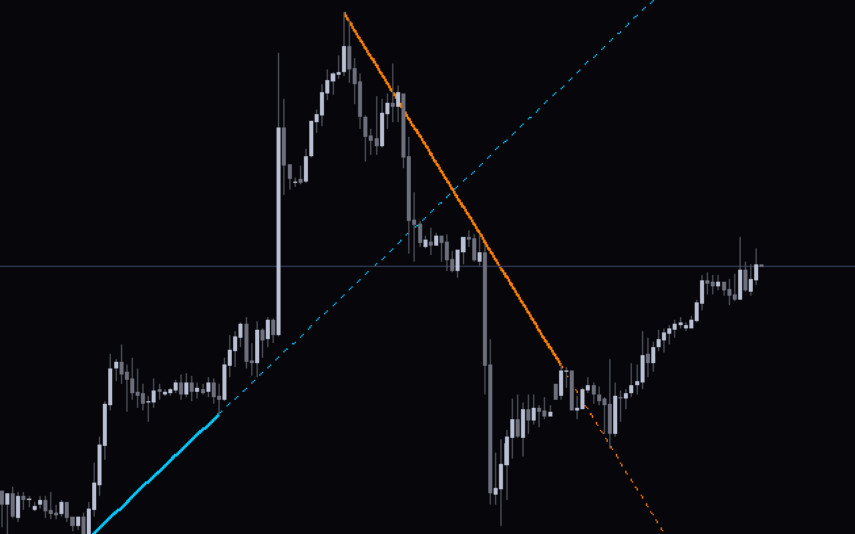
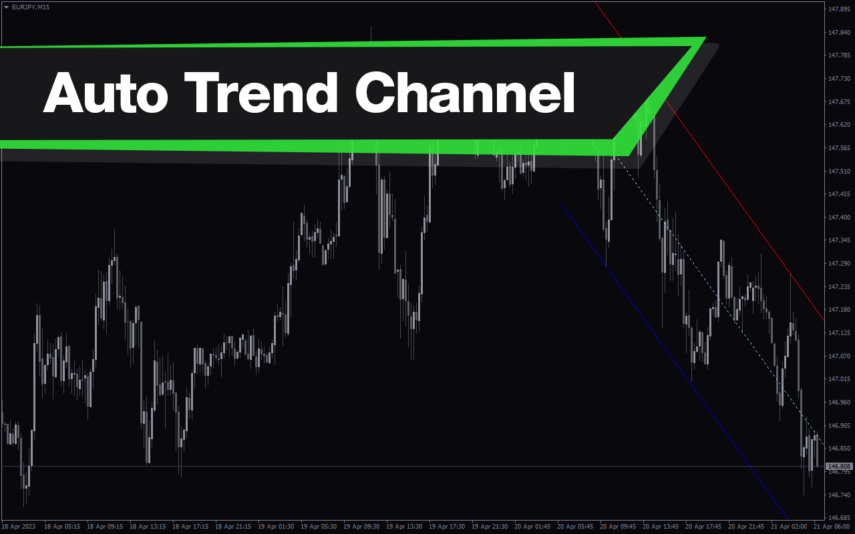
Auto Trend Lines Channels
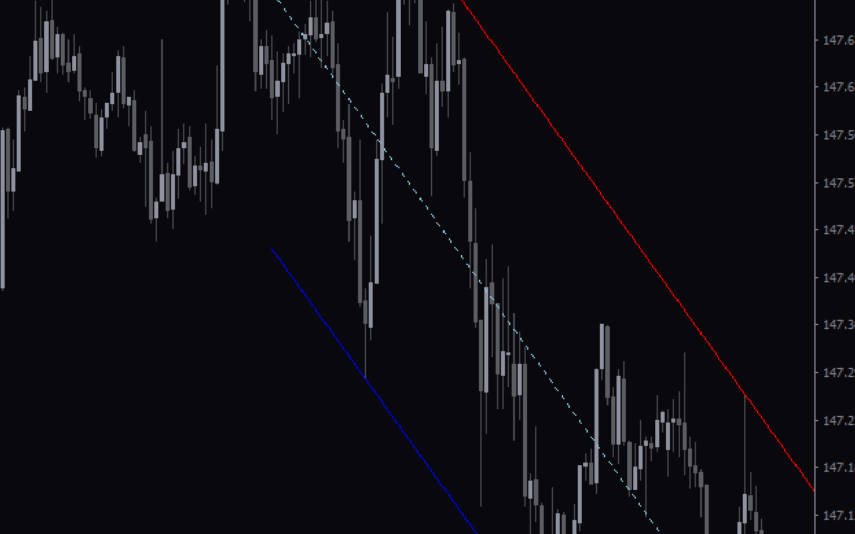
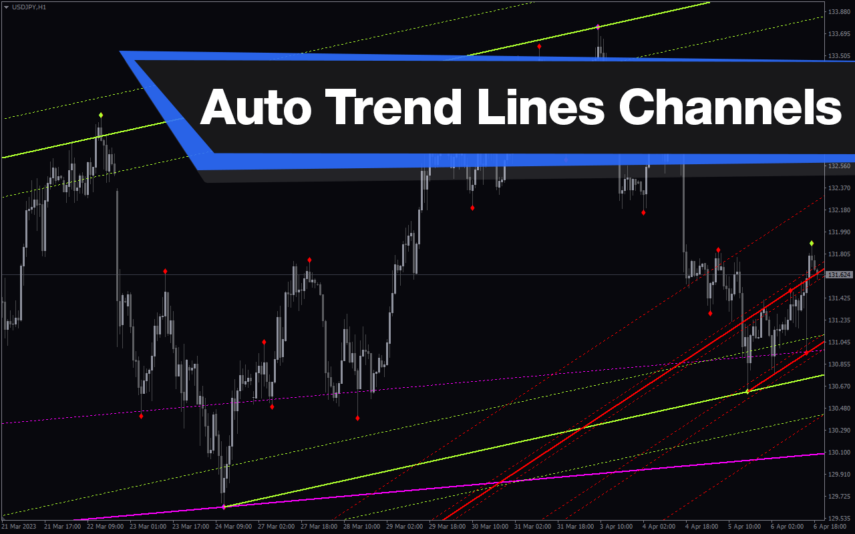
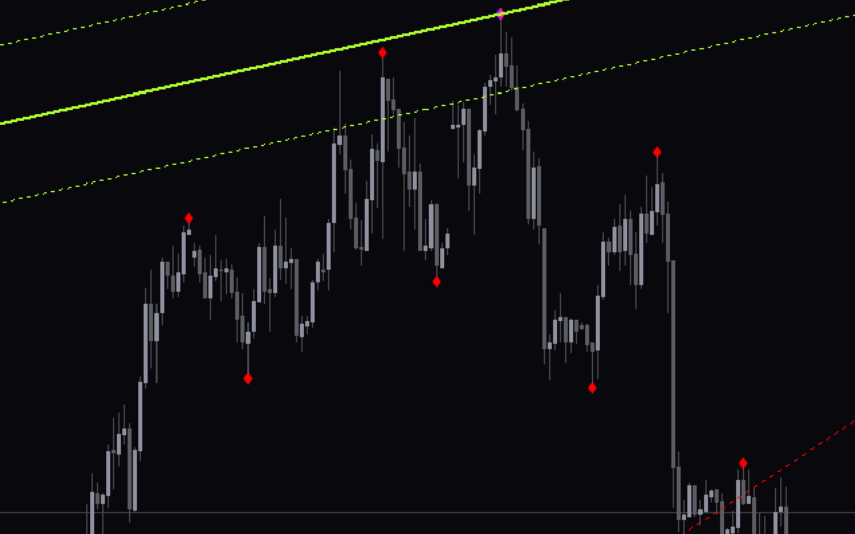
The Auto Trend Lines and Channels Indicator is a popular and free technical analysis tool for traders who use MT4 platform. This indicator automatically draws trend lines and channels on the chart, saving traders time and effort in manually drawing and adjusting these lines.The Auto Trend Lines and Channels Indicator is easy to use, and it works by analyzing the market price action to identify key support and resistance levels.
Sideways Detector
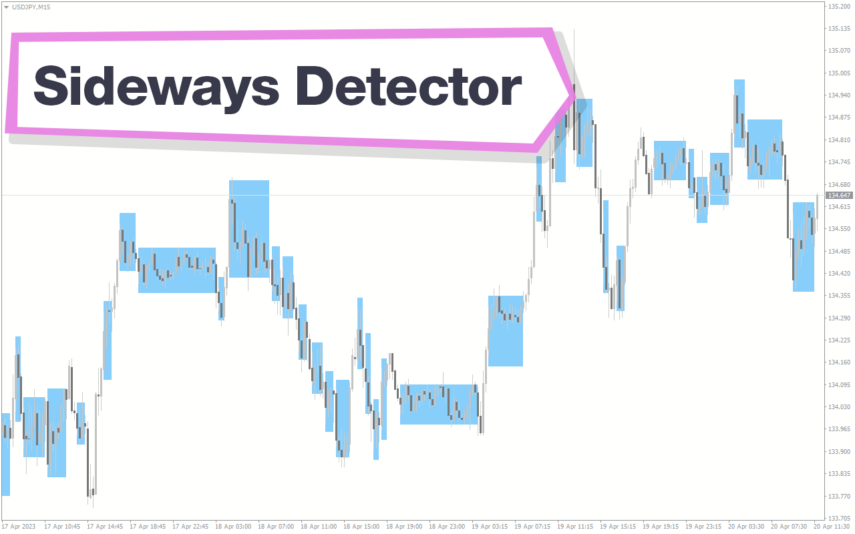
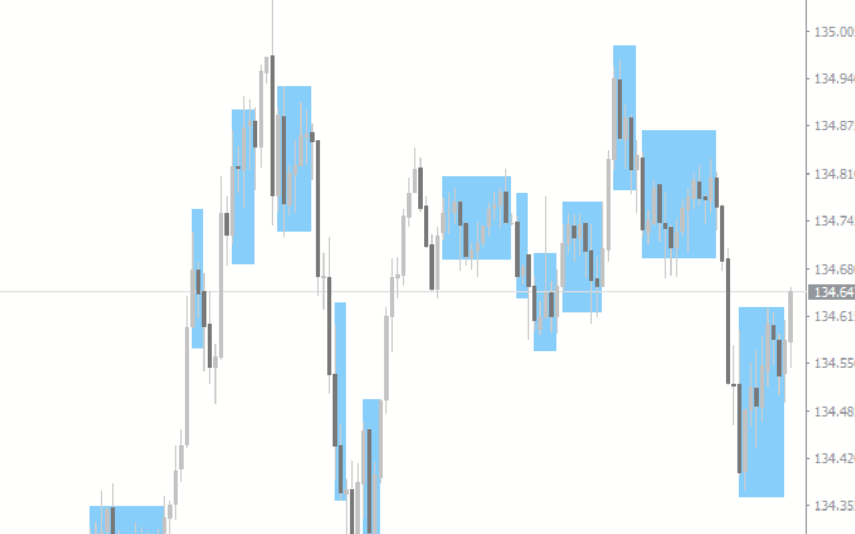
The Sideways Detector Indicator is a powerful and free forex indicator for MT4 that helps traders identify sideways market conditions in real time. It works by analyzing the behavior of the market price and identifying periods of consolidation, range movements and lack of a trend. Traders can use this information to adjust their trading strategies accordingly and avoid unnecessary losses. It is a useful tool for traders of all levels who want to improve their trading performance by staying ahead of market trends.
Exponential Moving Average
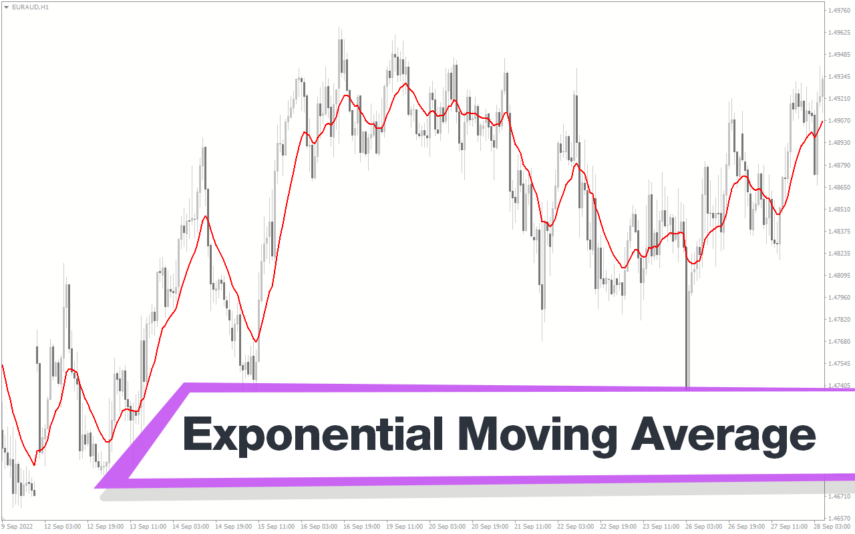
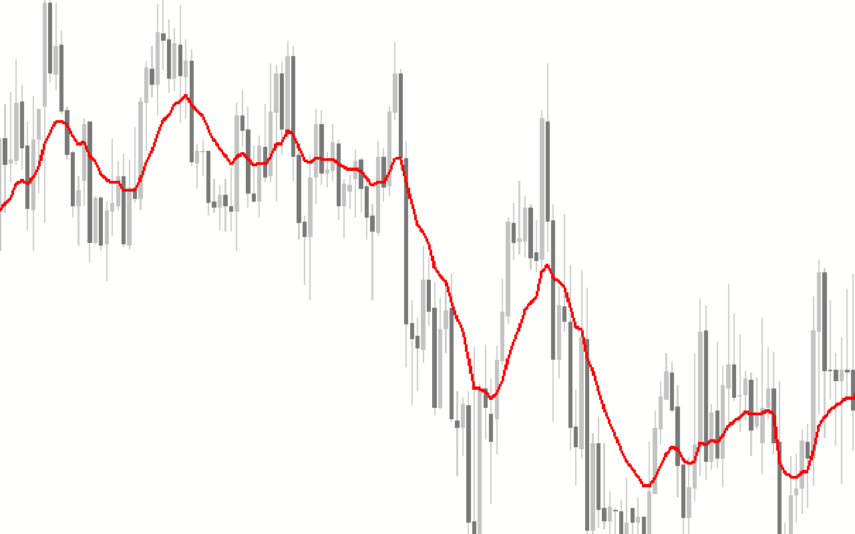
The EMA Indicator is a popular new forex tool for MT4 that is available for free download. It is a type of moving average that provides more weight to recent price changes, making it more responsive to current market conditions. The EMA indicator works by calculating the average price of an asset over a given period, with more emphasis placed on recent price action. This makes it a useful tool for traders looking to identify trends and changes in market direction.
Price Position
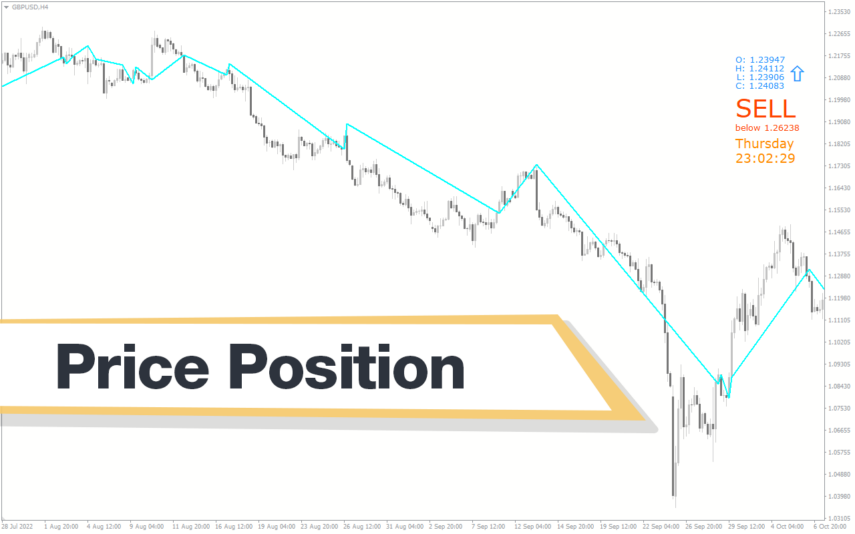
The Price Position Indicator is a useful and popular free Forex indicator for MetaTrader 4 (MT4). It helps traders to identify the entry and exit points of their trades, allowing them to maximize their profits. The indicator works by displaying the price movements of a currency pair in a graphical format. It shows the current price level relative to the previous price level and the current trend of the currency pair. It is an ideal tool for both novice and experienced traders, and can be used to identify potential trading opportunities in the Forex market.

Reviews
There are no reviews yet.